
NEW TODAY: Cowork Projects. One Step Closer to Automating Your Job.
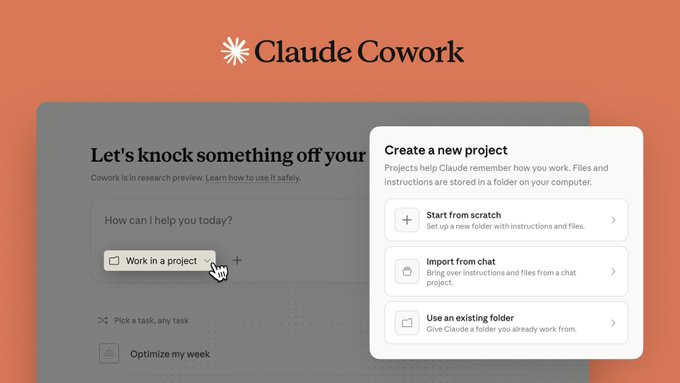
Anthropic just dropped Projects in Cowork.
I have a ton of students using Projects in vanilla Claude to manage client work, as it gets smarter over time as more context gets added.
But until now that didn’t translate to the draft horse of Claude’s offerings: Cowork.
From “enthusiastic amnesiac” to “full-time assistant.”
I set up my first one in about four minutes.
Here’s how:
What Projects Are + How to Create One
A Project in Cowork is a dedicated workspace with four things baked in:
instructions
context
memory
scheduled tasks.
All scoped to that project, and persistent across sessions.
I tested it with email copywriting, and one of the old projects I’d been using for coaching.
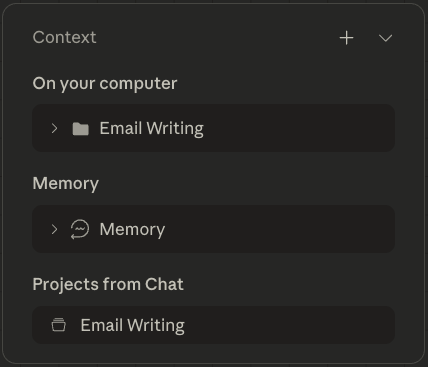
Set this up and then I’ll show you what else you could do with it:
3 Ways to Create Projects Based on the Job
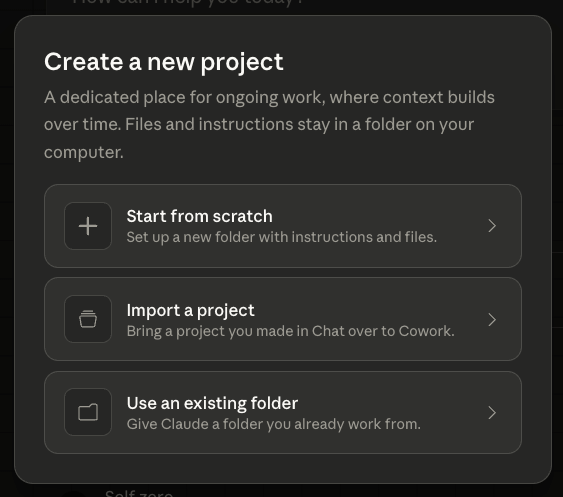
1. Start from scratch. New folder, new instructions, new context. Best for workflows you haven’t started yet, things you’re doing on spec but that need a concrete deliverable.
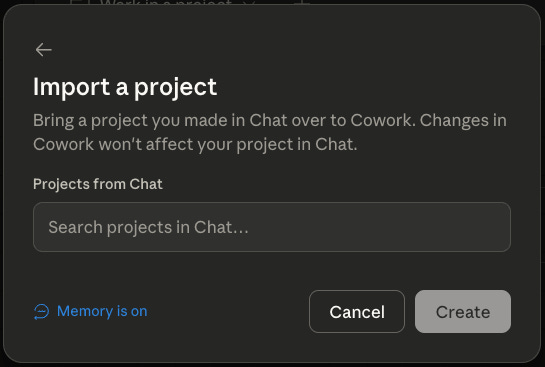
2. Import from a Claude Chat Project. This is the big one. If you’ve been using Claude’s chat projects—the ones where you uploaded files, wrote custom instructions, had months of conversations—you can pull all of that into a Cowork project. Files, instructions, the works. Months of context, transferred in one move. If you’ve been a heavy chat user, this is your migration path
.
3. Use an existing folder on your computer. Point Cowork at a folder you already work in. Add instructions and context on top. You’re just giving Claude access to what’s already there.
Your First Project
Stop reading and do this. Five minutes.
Step 1: Pick your most repetitive workflow. The thing you explain to Claude every time you open a session. Newsletter writing. Meeting prep. Content review. Client reporting. Whatever it is, that’s most likely the highest-leverage place to start.
Step 2: Create the project. Open Cowork (latest version—update if you haven’t). Create a new project. If you have an existing chat project with relevant context, import it. If you have a folder on your machine with the files you use, point to it.
Step 3: Write your instructions. Three to five lines for starters. Example:
You help me write my weekly AI Dispatch newsletter.

Voice: direct, punchy, practitioner-first. No fluff.

Always reference previous issues for consistency.

Draft in markdown. Use closed em dashes.

Never use: leverage, unlock, game-changer, seamlessly.
Step 4: Add your context. Link the folder where your drafts and training context live. Add any reference files—style guides, past issues, audience notes.
Step 5: Set one scheduled task. Something simple. “Every Monday at 8am, review my content calendar and draft three newsletter topic options with one-sentence pitches for each.” Now that task runs with full project context. Your voice rules carry over. Past issues are in context. And it knows what you’ve been working on—not because you told it again, but because it was there last time.
That’s a project. Five minutes to set up. Compounds every session after.
The Sleeper Hit is Memory
Everyone’s going to focus on the project container. The instructions and the file linking. That’s all table stakes.
But I just hated when Claude acted like we weren’t already friends.
The workarounds I’d built for cowork and claude code (CLAUDE.md files, markdown progress trackers with stop-hooks, memory folders, context dumps) all helped, but they were a little more fragile than I like.
It’s on by default, it sticks around between sessions, and it doesn’t leak between projects.
I’ll be testing the limits of this memory feature. Just slapping the words “Memory on” to a window doesn’t make me believe it.
Between Dispatch, Scheduled tasks, and Projects, the gap between any always-on agent and Claude-out-of-the-box is shrinking.
We are moving toward a full-time assistant agent that gets your work done for you. I know how that sounds. But persistent memory + scheduled tasks + custom instructions = an agent that learns your job. You can automate large portions of your job with this today.
Your mission now: Create one project. Import your most-used chat project into it. Set one scheduled task. Drop a comment and tell me what you built—I love getting them and read every one.
-M
P.S. If you want to build these workflows live with me—AI Writing Skool is where we workshop this stuff weekly.